It cannot pay
Every action passes one decision step, and that step refuses payments. Clawco shows the reason instead of a button.
A personal control centre
Clawco reads what you would otherwise have to read: mail, calendar, notes and news. It shows one screen with what needs you now. You act with one tap and undo with another. It never pays, and it never messages anyone or deletes anything without your yes.
Install Clawco See how it works
Runs on your own Mac or Linux machine, or in Docker. By default it listens on that machine only.
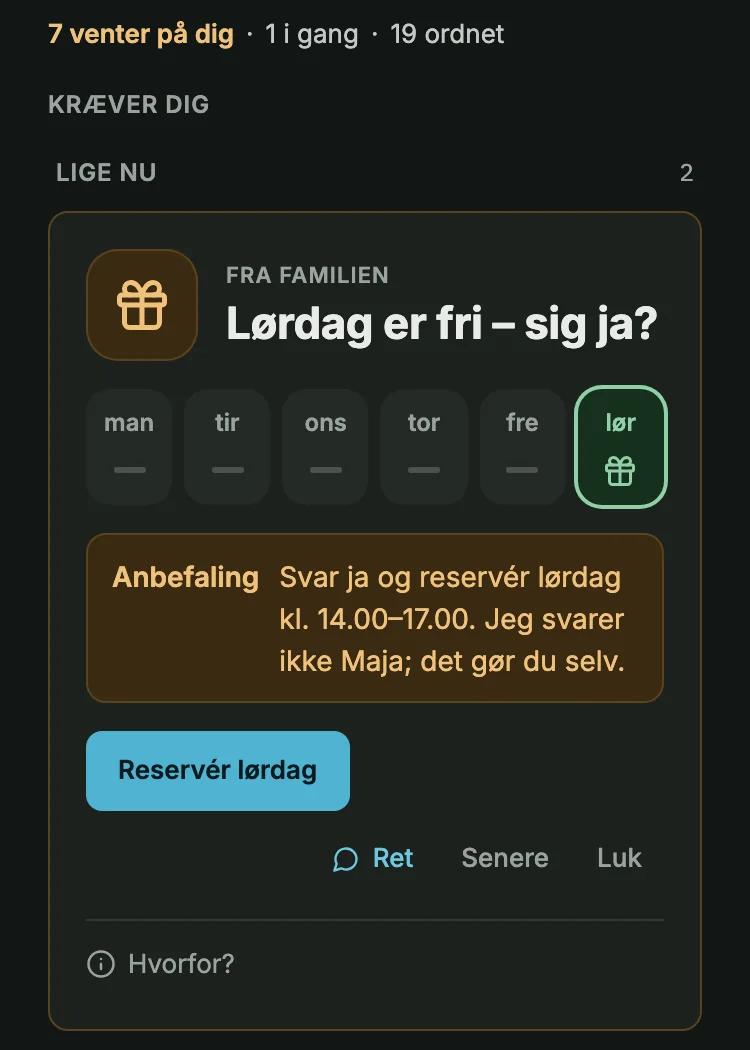
These limits sit in the code that every action passes through, not in a prompt. What a model writes can add a refusal; it cannot remove one.
Every action passes one decision step, and that step refuses payments. Clawco shows the reason instead of a button.
Writing to other people waits for your own tap on yes, once per action. A voice command cannot give that yes.
Deleting works the same way: it waits for your own tap on yes, and a voice command cannot give it.
Every action is written to a log with the time, the source and, when there is one, the way to undo it.
The Start room walks you through it. Nothing is required beyond a model and one source, and each source you connect puts its first cards on the screen.
One command on your machine. Clawco starts and prints its address.
Your name, the language the agent answers in, and whether you are alone or a household.
Paste a key from your provider, or use a model on your own machine. Clawco tests it live before it moves on.
A calendar or your mail. The first cards appear in Now.
More sources, a notes folder, news. You can also bring what other assistants know about you, as notes you can read and edit.
Fix something the agent got wrong. Clawco proposes a rule from it, and you approve it or not.
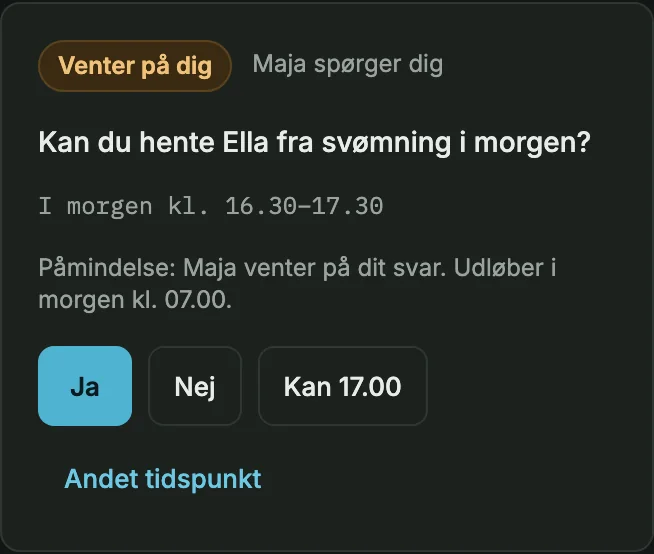
The people you share a home with ask each other for time and claim shared things, like the car, through requests.
Start folds away when you are done and returns only when a new source is worth adding.
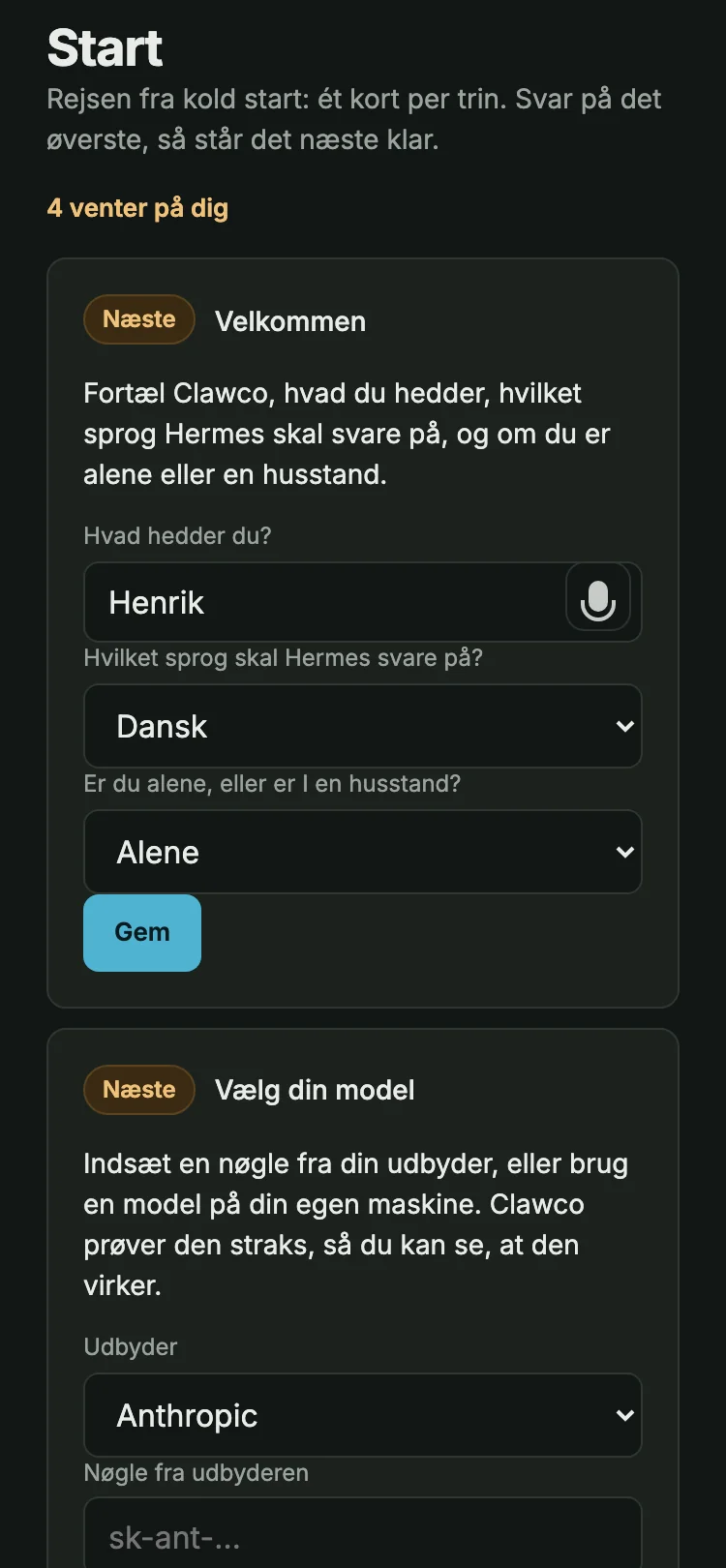
The agent can only fill a fixed set of blocks: card, decision, pile, done, conversation, request and resource. The screen never takes a new shape.
Things sit in three bands: needs you, in progress, done. They only move down.
Colour means state. Amber needs you. Blue is something you can press. Green is done and can be undone. Red is a limit. A calm screen is grey.
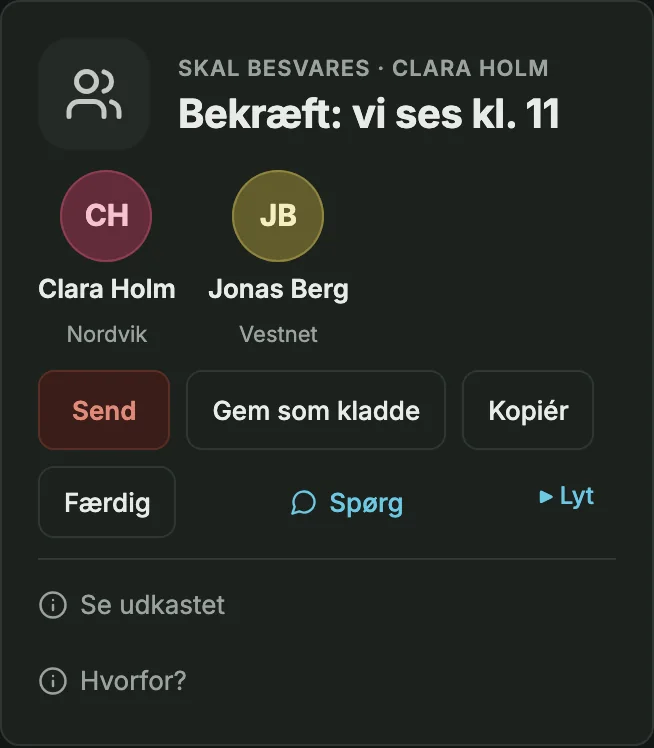
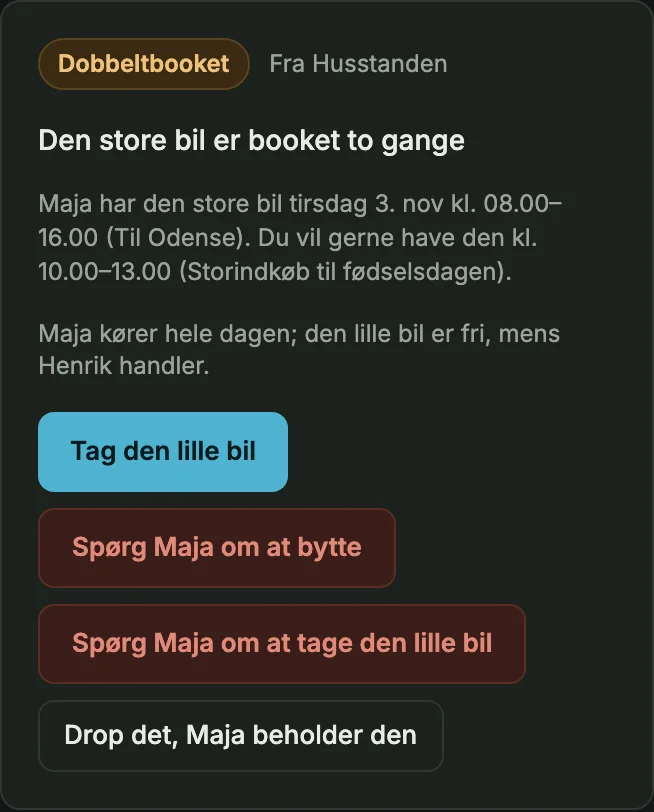
Ask each other for time, or claim something shared, like the car. A request has a visible state: asked, accepted, declined, alternative or expired.
Your own Now, your notes and your work and private zones are never shown to the others.
One command installs it as a background service under your user. It needs Node 22.6 or newer, git and npm; if one is missing, the installer says which command to run.
Docker Compose runs it as a container with your data in a volume and a read-only root filesystem. It is published on this machine only.
With Tailscale on the machine, one command makes Clawco reachable from your phone on your own tailnet. Clawco refuses requests that arrive through Tailscale Funnel.
Clawco works with a Hermes agent. You bring the model: in Start you choose a provider (Anthropic, OpenAI, GitHub Copilot or OpenRouter) and paste your key, or point Clawco at LM Studio or Ollama on your own machine. Clawco tests the choice live.
You pay your provider for what the agent uses. A model on your own machine costs nothing per use.
It cannot pay. It cannot message other people or delete anything without your own tap on yes, and a voice command cannot give that yes.
In a folder on your own machine, the user folder. The code lives in another folder, so an update never touches your data. When the agent works on something, the text it needs goes to the model you chose; with a model on your own machine, that step stays on your machine too.
No. It sets no cookies, makes no requests to other servers and counts no visits.
You pay your model provider directly for what the agent uses. A model on your own machine costs nothing per use.
Stop the background service and delete the folders. The guide for Mac and Linux lists the steps and says where your data is, so you can keep it.
This site is in English and Danish. The screens are in Danish today, and an English interface is planned. When you start, you choose the language the agent answers in.